P-14 / DOC / D1
1.75 mm conversion guide
Source: UMO-1.75mm repository README. Work in progress: some steps will be completed later.
Why this conversion
The Ultimaker Original, released in 2011, was my first personal 3D printer. I received it at the end of 2012 and used it without major issues until 2020. After that:
- all my other printers used 1.75 mm filament, and I no longer wanted to manage two filament stocks;
- the hotend was showing its age, and quality replacement parts were unavailable or too expensive;
- the extruder had become almost unusable, with the same supply issues.
Rather than leave a machine that can still print well gathering dust, I modified it to use standard Ender 3 parts and switch to 1.75 mm filament.
Bill of materials
Common parts, easy to find online:
- Extruder: product link;
- Hotend: product link;
- 40 × 40 mm 24 V fan to cool the print head and prevent clogs in the PTFE tube. I reused one from an Ender 2 Pro; any equivalent fan works;
- 4.7 kΩ resistor to solder onto the mainboard, and a soldering iron;
- Molex KK254 connectors, if you prefer not to cut and modify the existing sensor cable.
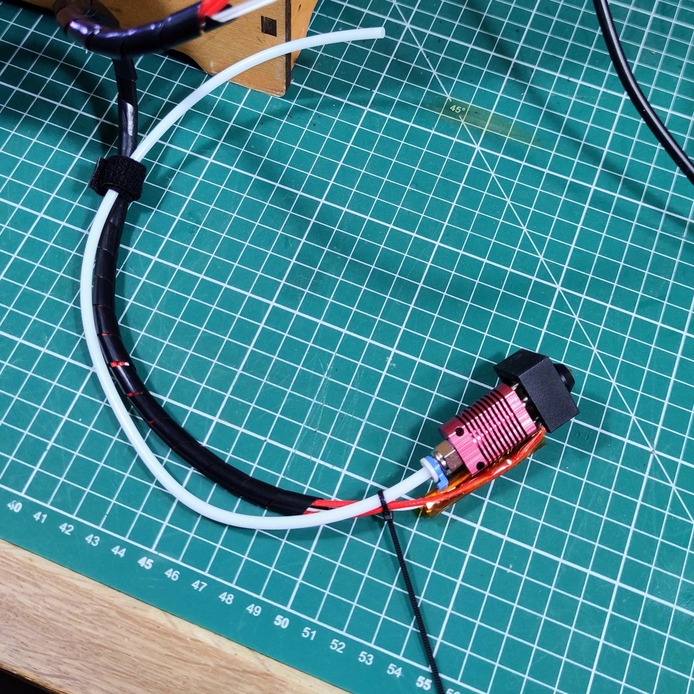 The new hotend with its harness.
A high-precision resistor improves the accuracy of temperature readings. For initial testing, a 5 % one will do. It is soldered at position R23 on the mainboard.
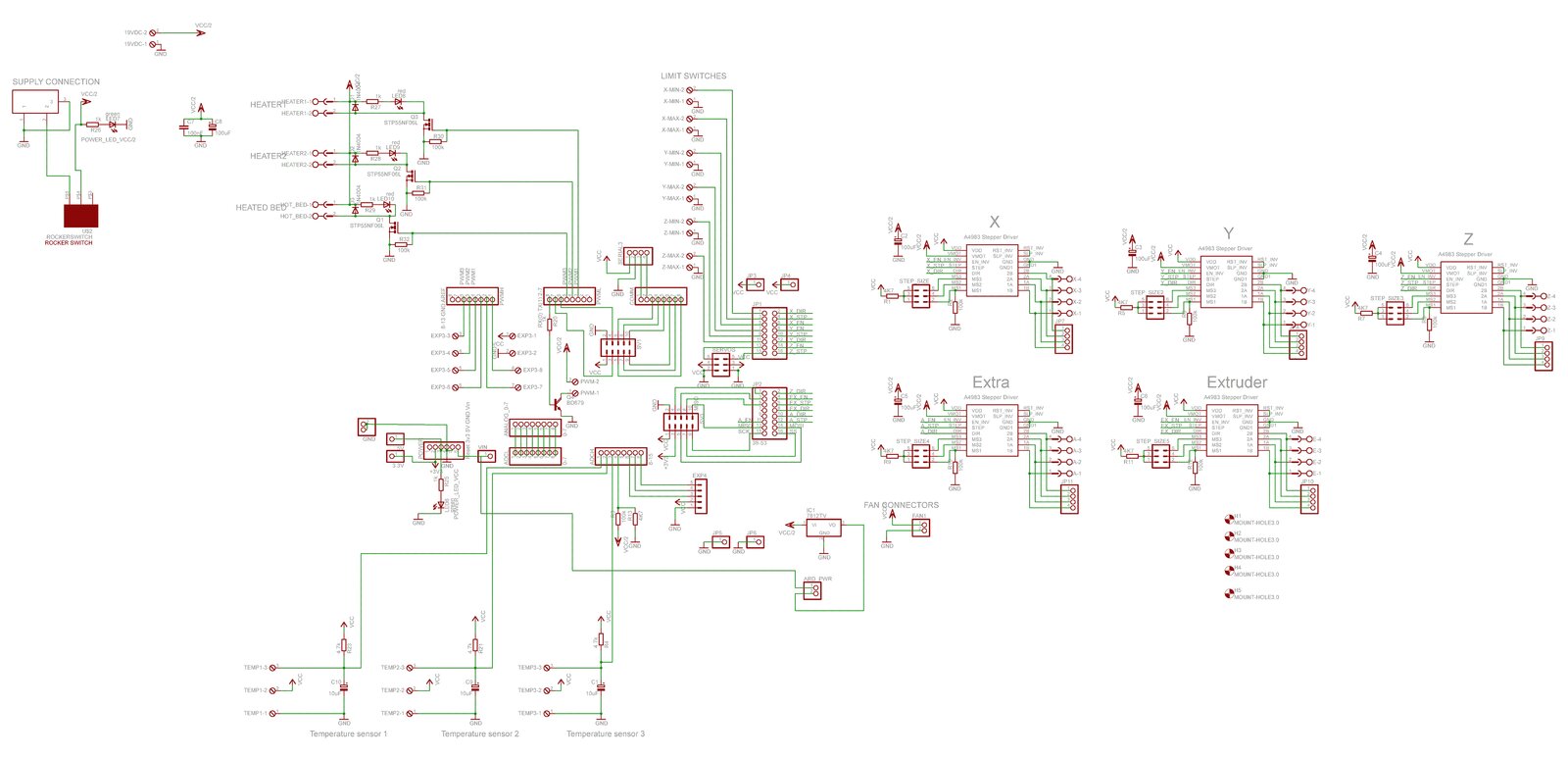 The Ultimaker Original mainboard.
Ultimaker’s original BOM can help too: UltimakerOriginal repository.
Removing the original print head and extruder
I had already modified the extruder in the past, so my version is slightly different from the original. I use it to temporarily hold the new extruder while I design a proper “Ultimaker-style” replacement.
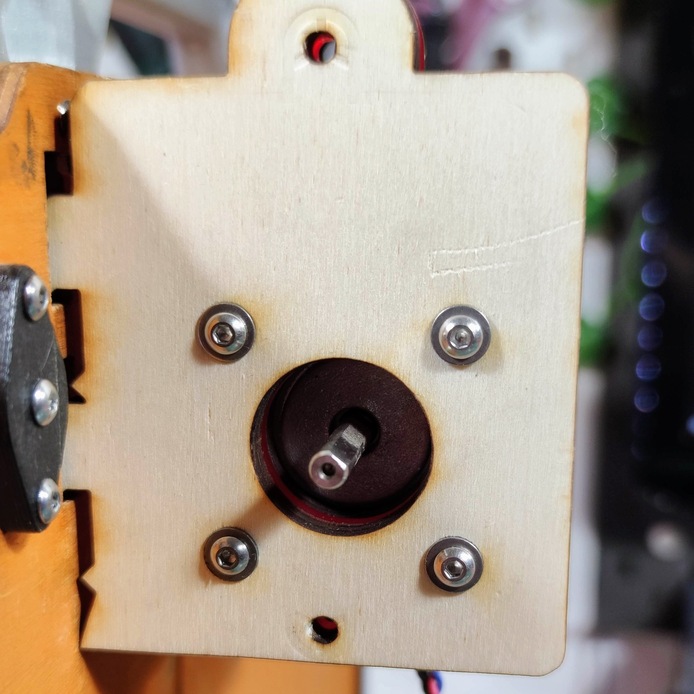 My extruder, already modified before the conversion.
1. Disconnect the heater cartridge
Unscrew the heater cartridge wires from the mainboard. Keep the existing sensor cable intact: it will be reused for the print head fan. Disconnect the temperature sensor wires as well.
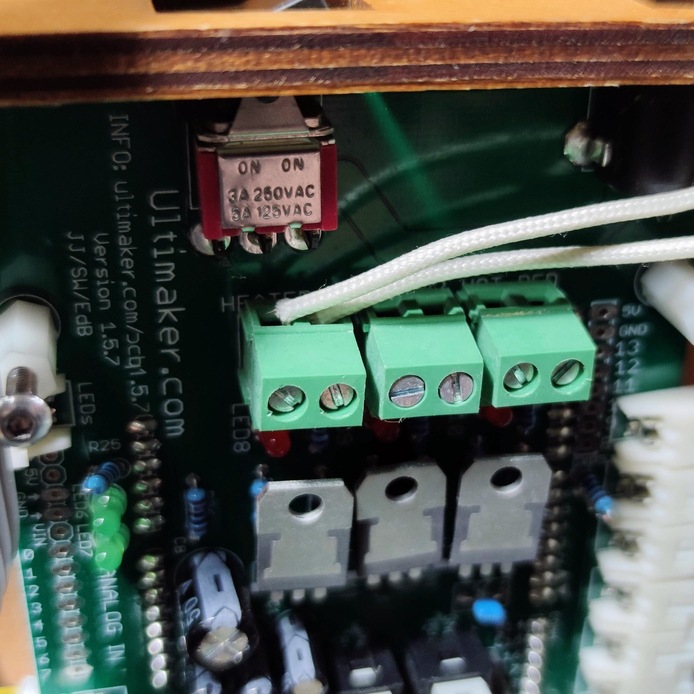
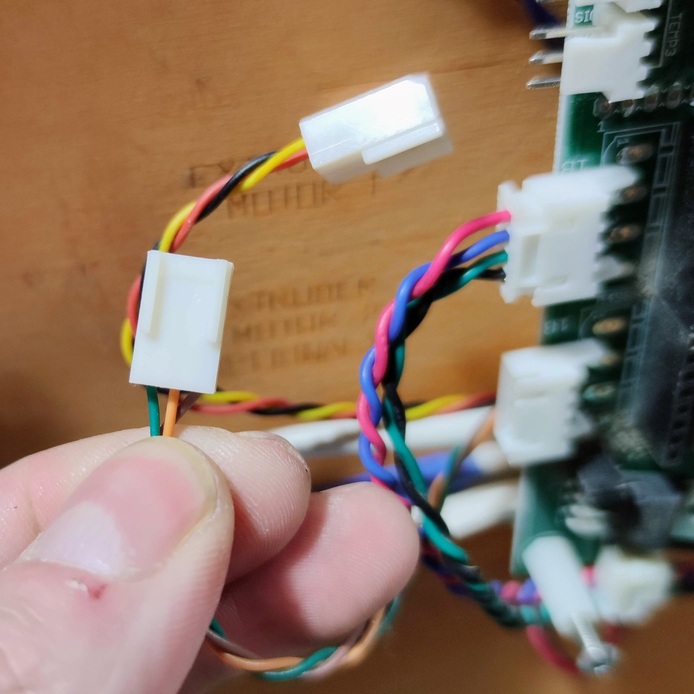 The print head connections on the mainboard.
2. Remove the print head carefully
You can now take the print head apart. Keep every part: you might want to reassemble it one day. I took everything apart piece by piece, unsure how reassembly would go, as I initially planned to reuse the original heater cartridge and sensor.
Unfortunately, the head was in such poor condition that this was impossible, and its connector broke in two.
Tip: handle the disassembly more neatly than I did. 😊
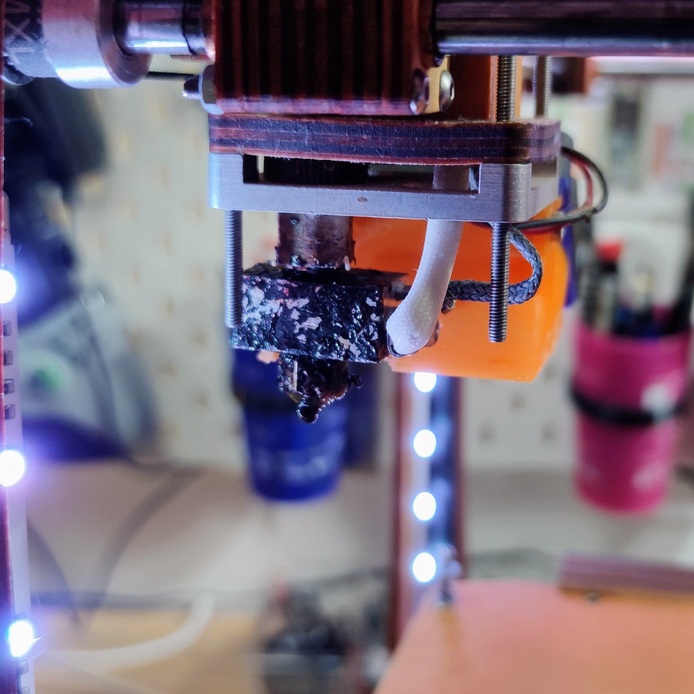
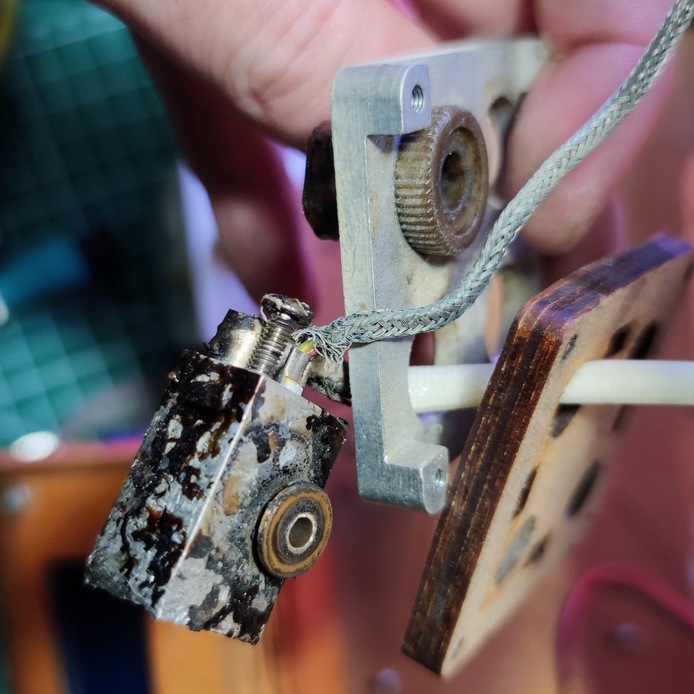
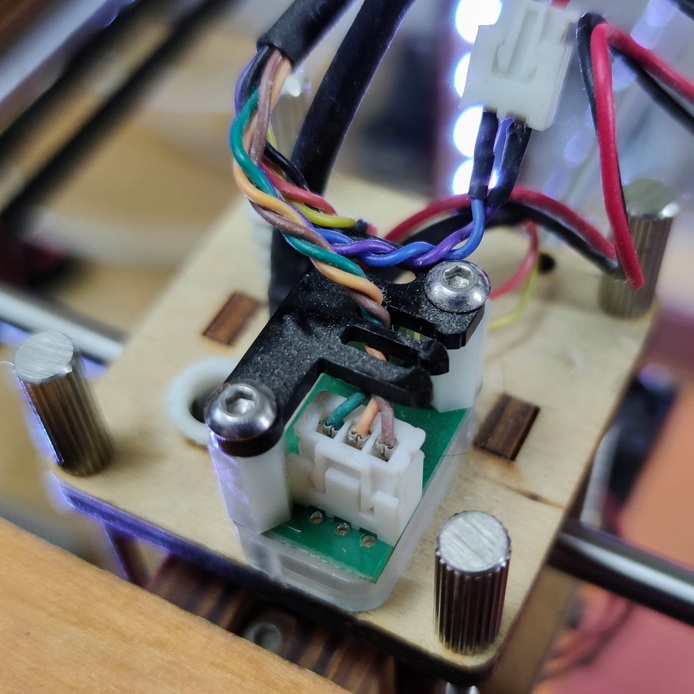
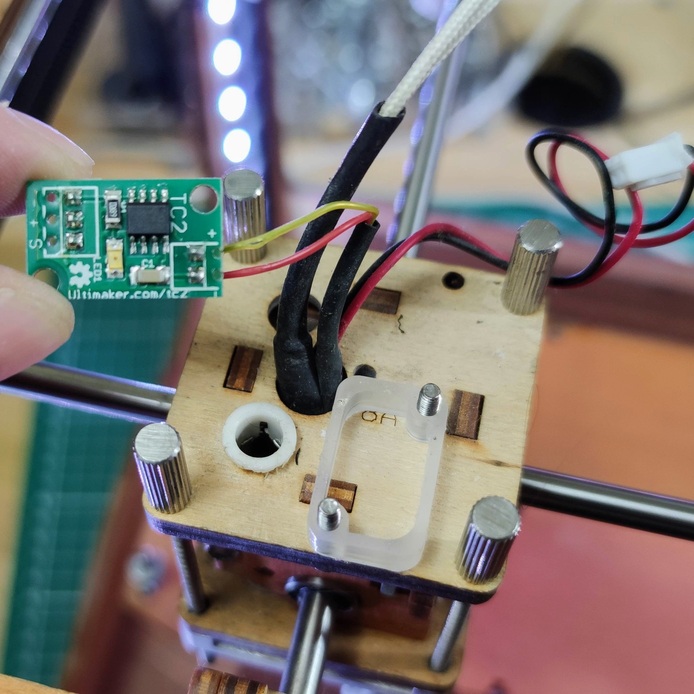
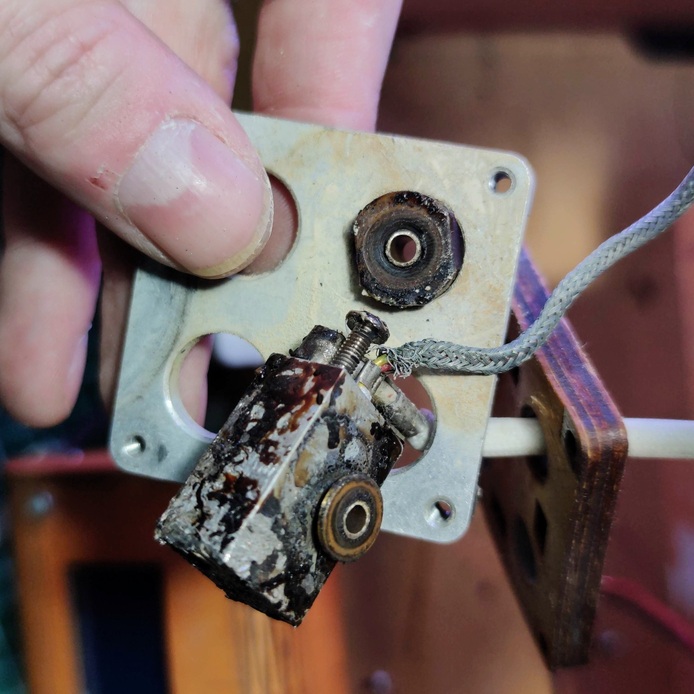 Taking the original head apart, down to the broken connector.
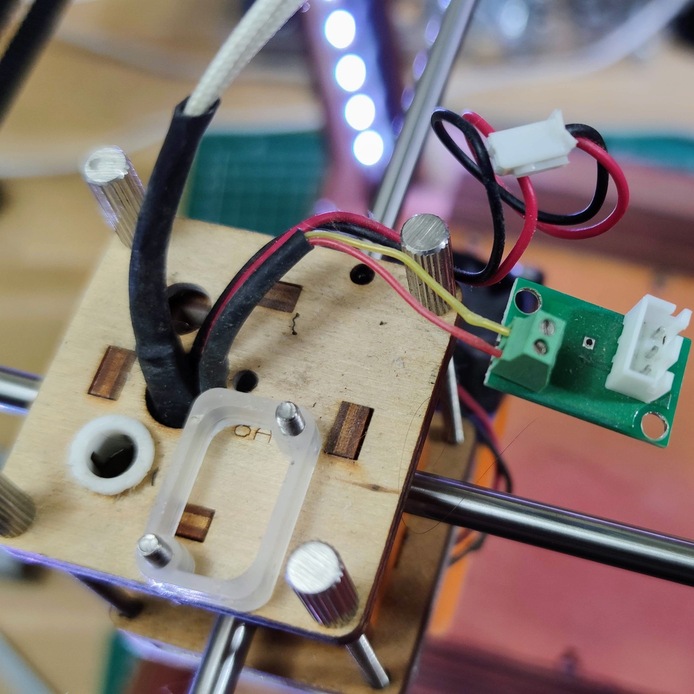 The print head plate, emptied.
Assembling the new extruder
Not much to explain here: the motor fits the extruder, so the change is straightforward. You only need a plate to hold the assembly. The original plate will do if you still have it.
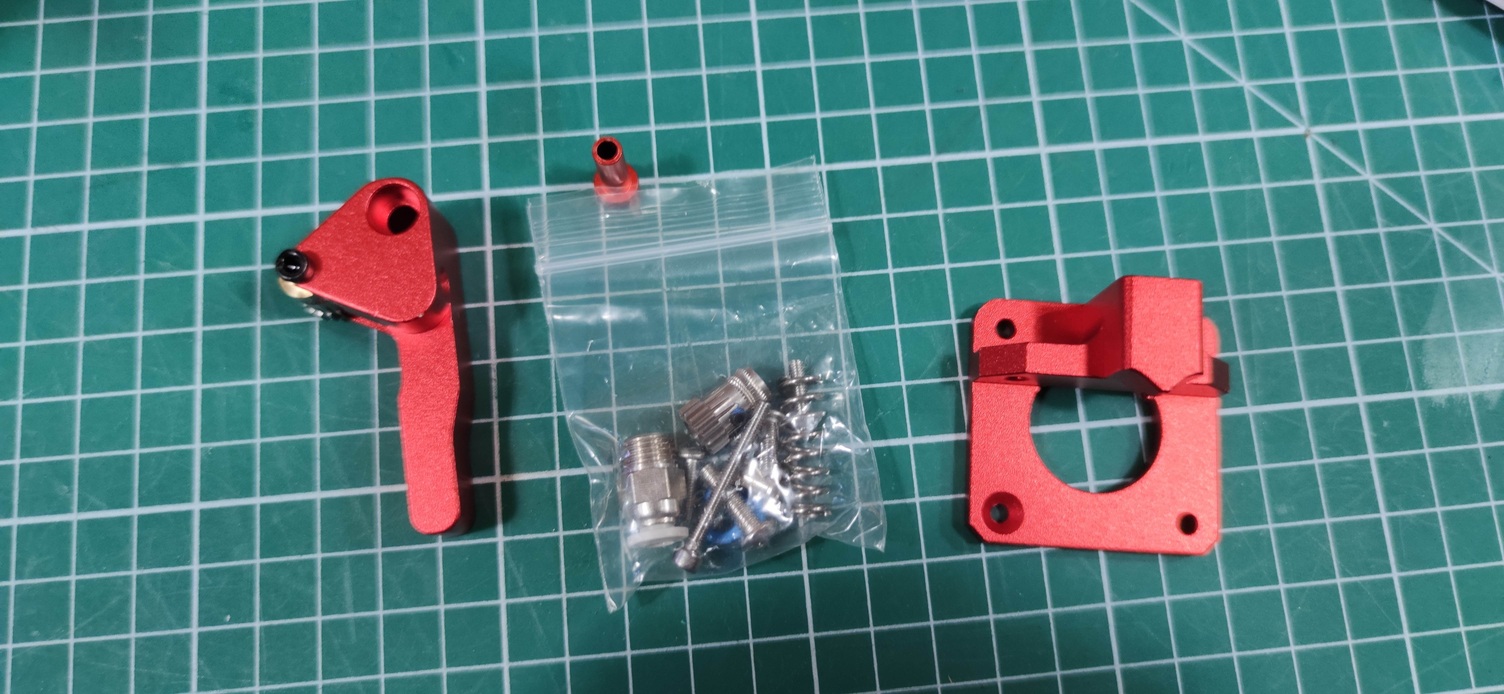
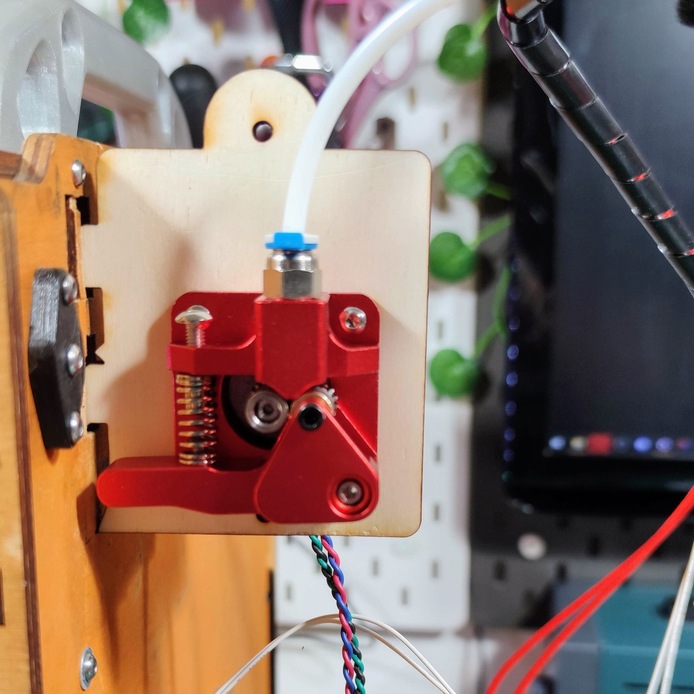 The new extruder on the original motor.
Cable routing
Route all the cables from the new print head through the original path: two wires for the heater cartridge, two for the temperature sensor.
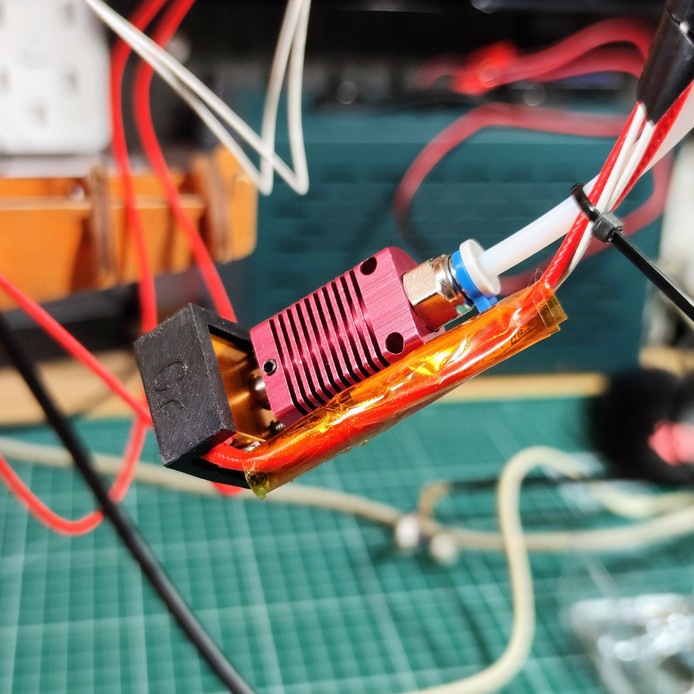 The new print head harness.
I have always been a bit skeptical about this machine’s cable management. The fabric sleeve around the bundle is a great idea, but underneath it is a real mess. 😅 I will have to sort it out one of these days.
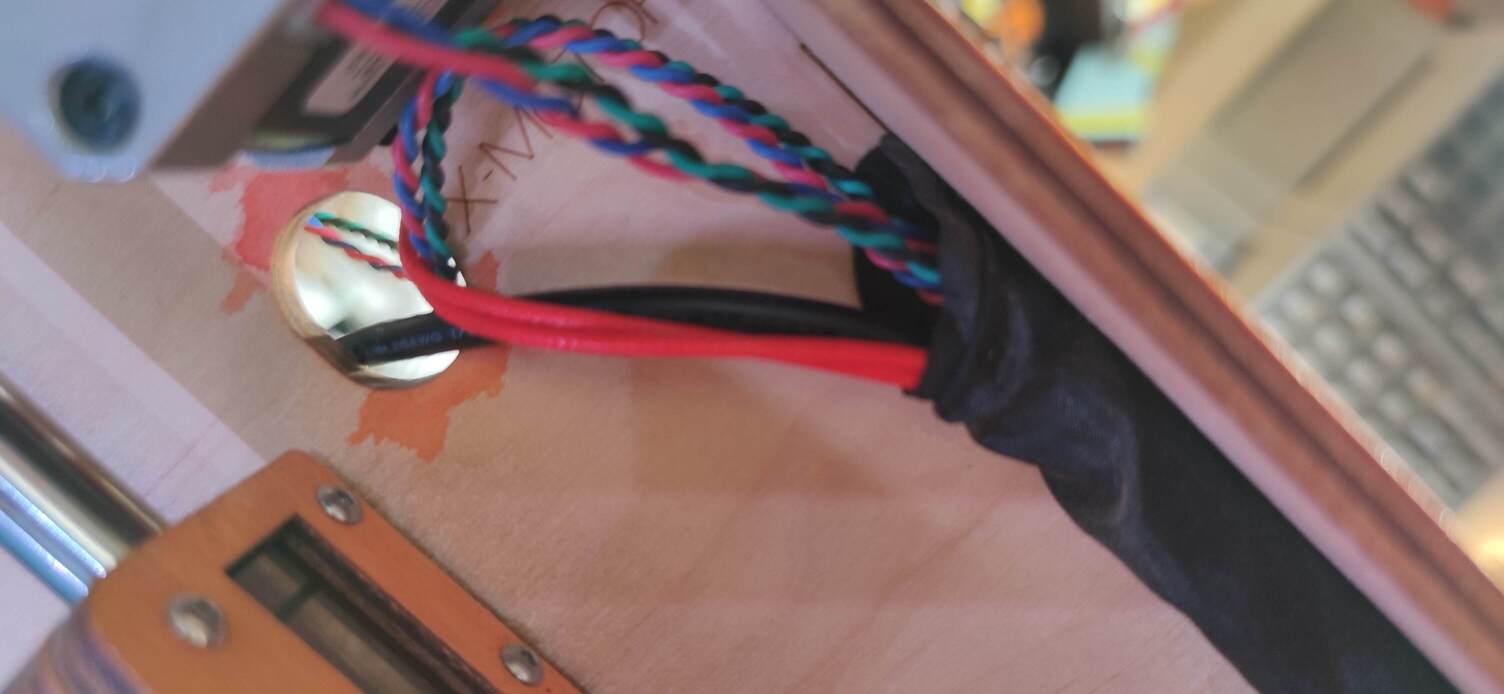
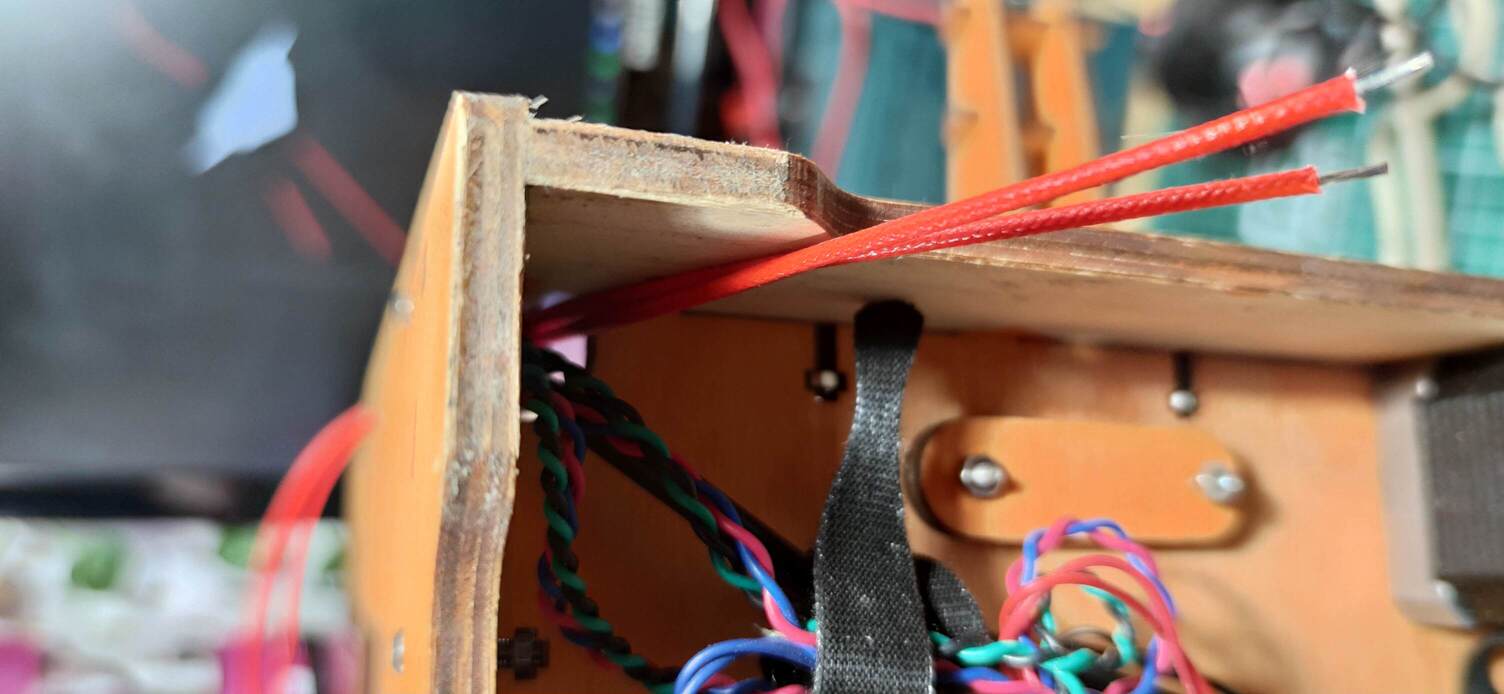 Under the machine.
Connect the heater cartridge wires where the original cartridge was. Polarity does not matter.
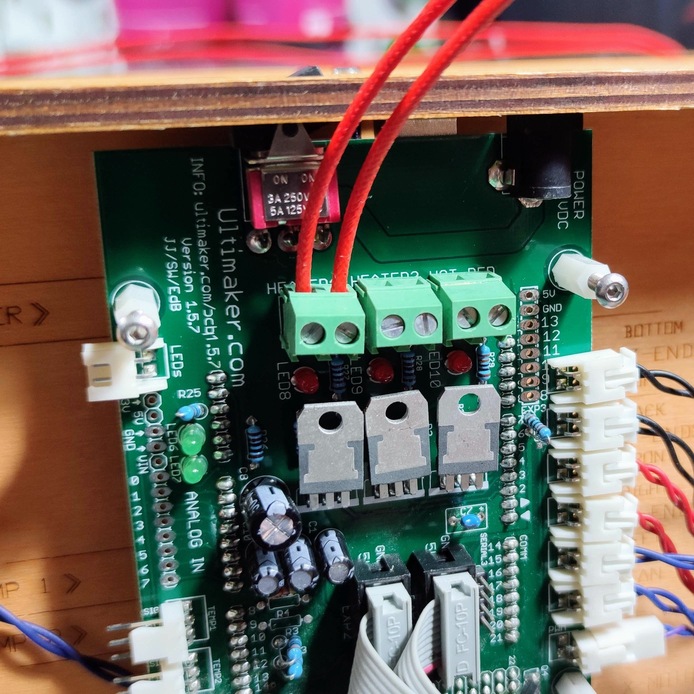 The new cartridge connected to the board.
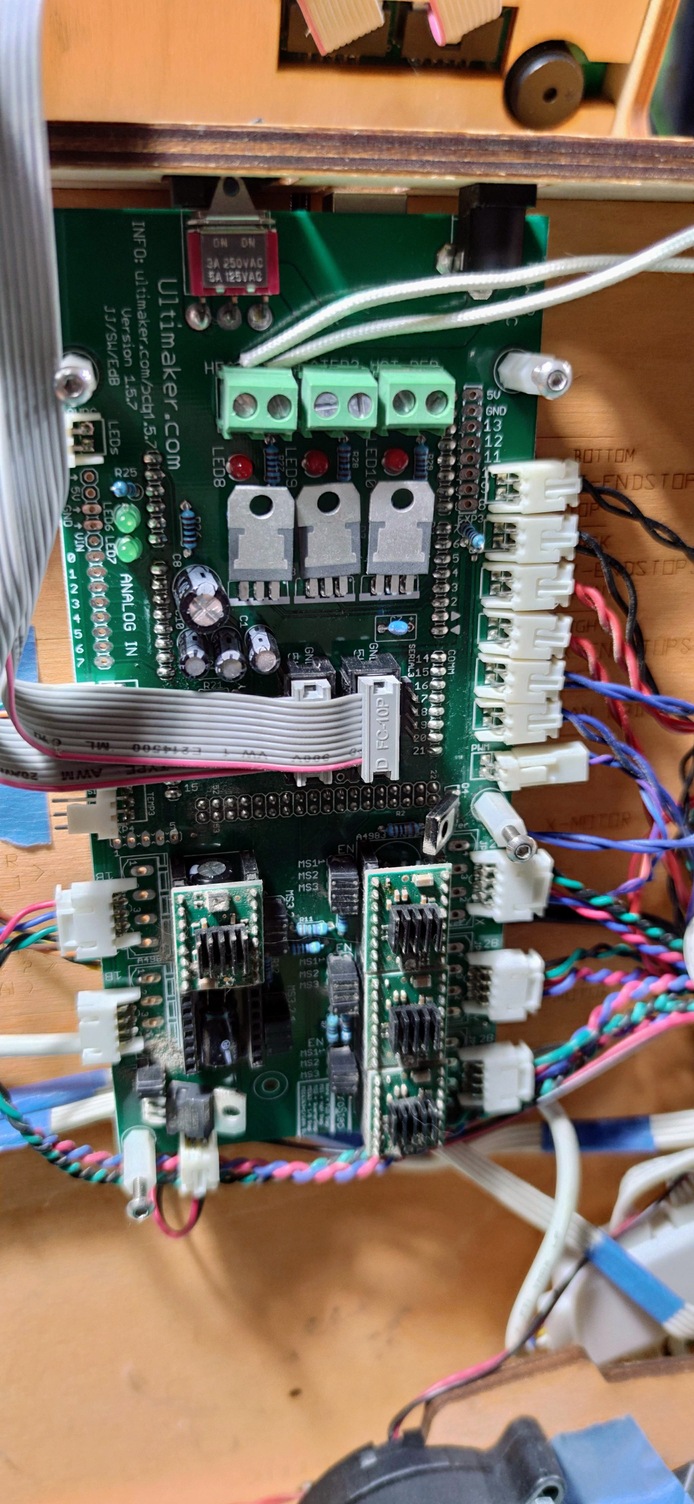 Mainboard overview.
Soldering the 4.7 kΩ resistor
If you feel ambitious, unplug everything, remove the board and solder the resistor “properly” through the PCB. For initial testing, you can also bend it as shown and solder it on the surface. That is fine for now, especially with a 5 % resistor you plan to replace later with a more precise one.
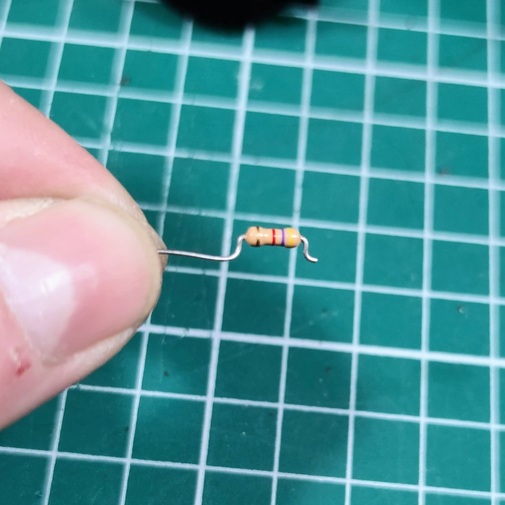
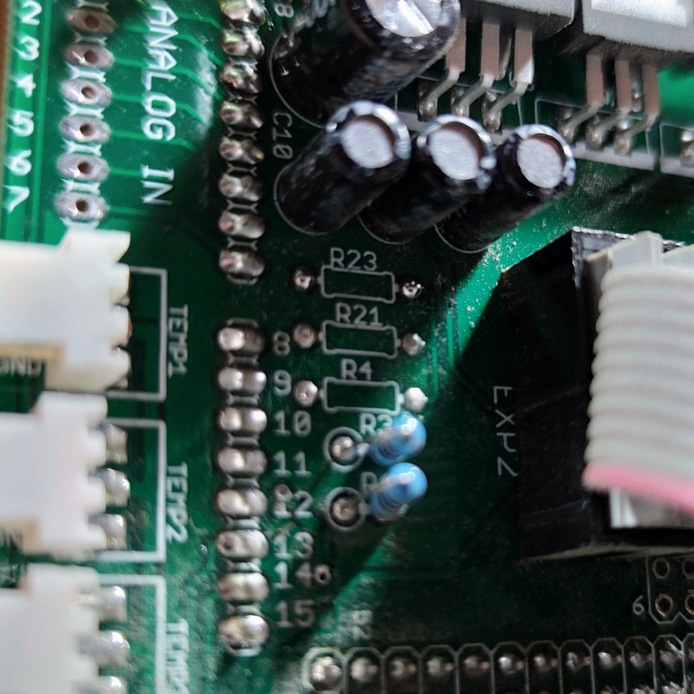
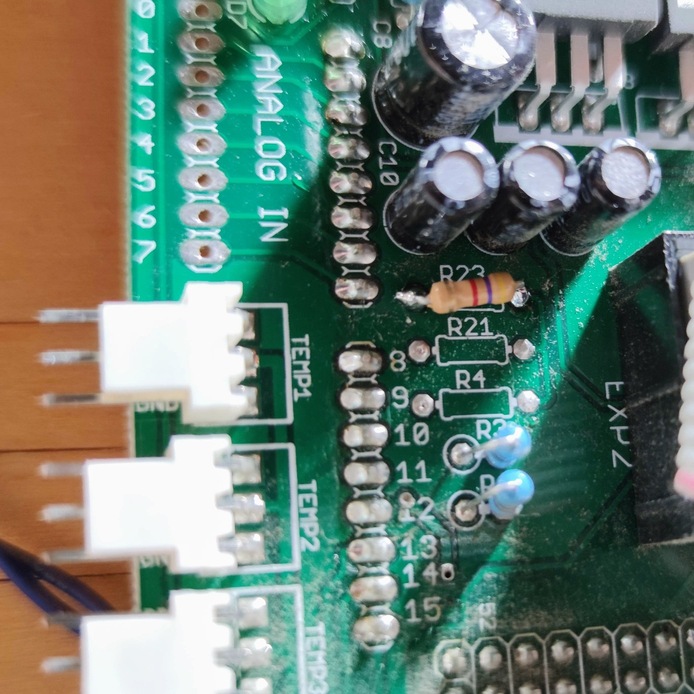 The 4.7 kΩ resistor surface-soldered at R23.
Making a sensor connector
Crimp a Molex KK254 connector onto the temperature sensor, using the GND and SIG pins at the ends. Then plug it into the TEMP1 slot on the board.
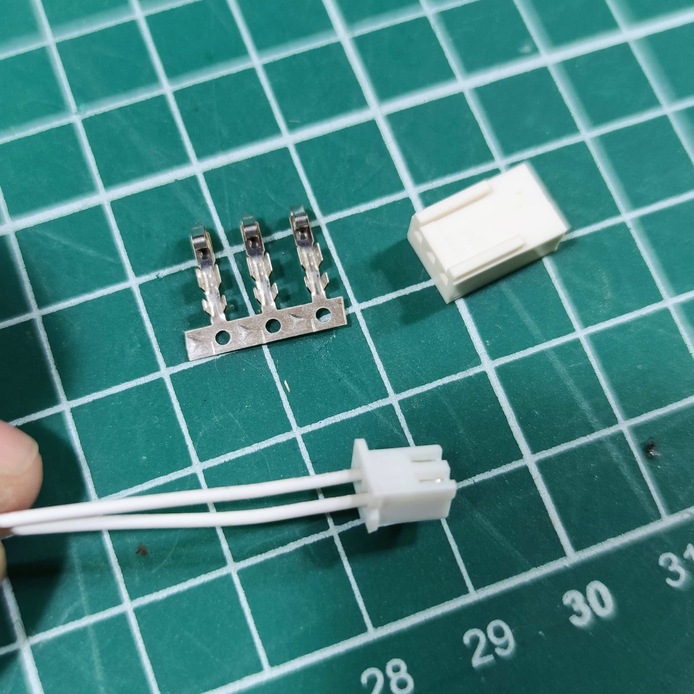
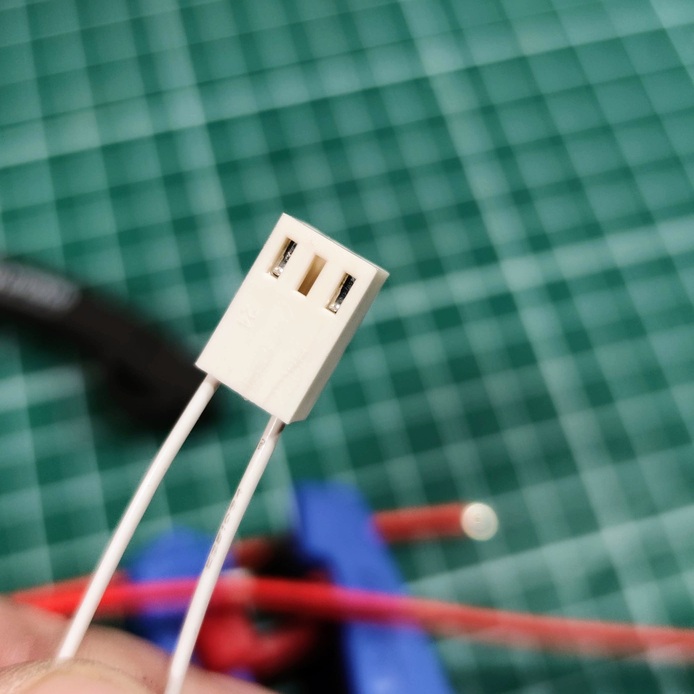
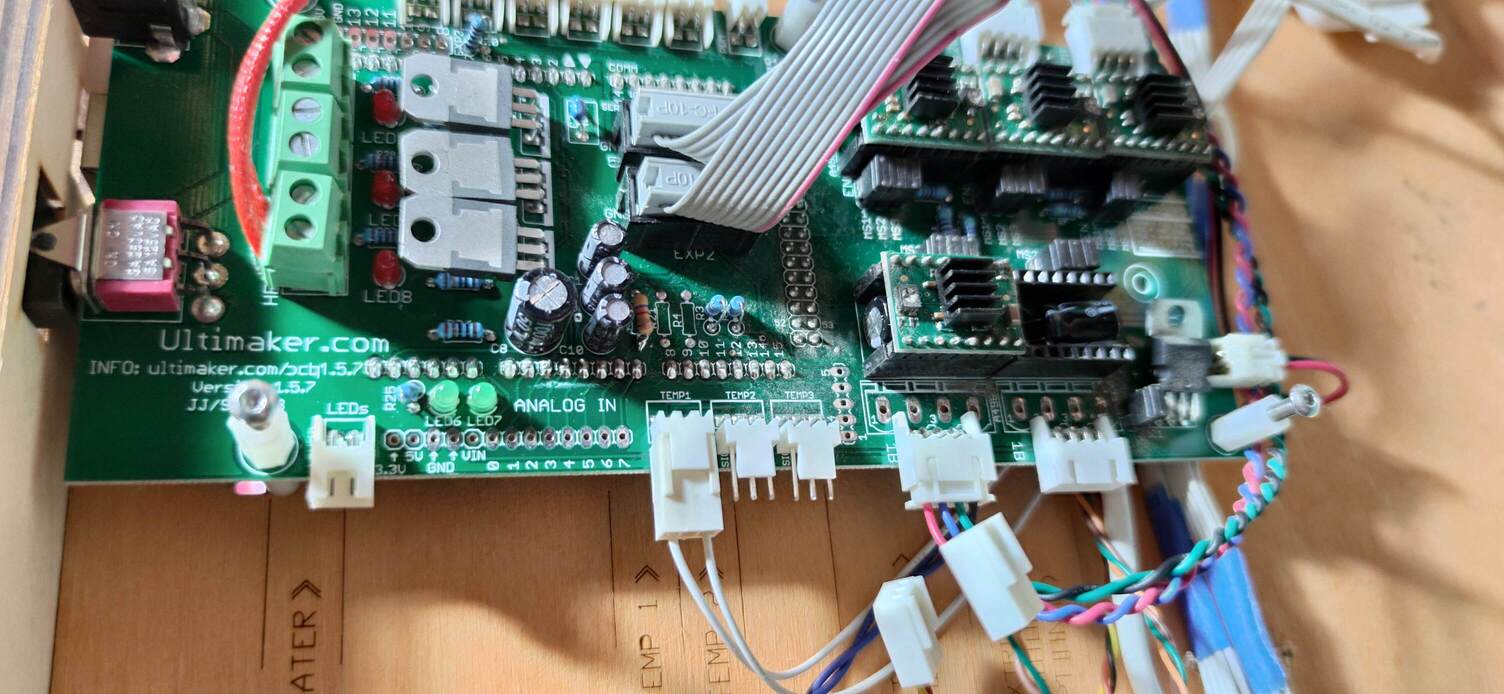 The sensor connector, then plugged into TEMP1.
Adding the print head fan
The original machines did not have one, but cooling the hotend soon became essential to prevent clogs. A 40 × 40 mm 24 V fan connects to the board’s cooling fan output. It must always run, so no specific input is needed.
Take advantage of the board being accessible to make this connection and route the fan cables.
I did not take photos of this step; I will add them later.
Test assembly
With leftover parts, you can build a temporary assembly to test your connections. I used some old Ender 2 Pro parts to mount the fan and the print head.
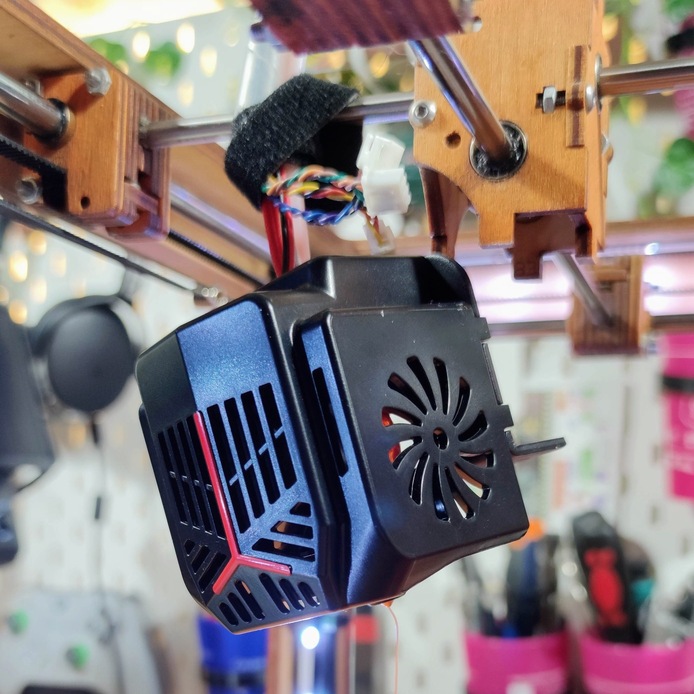
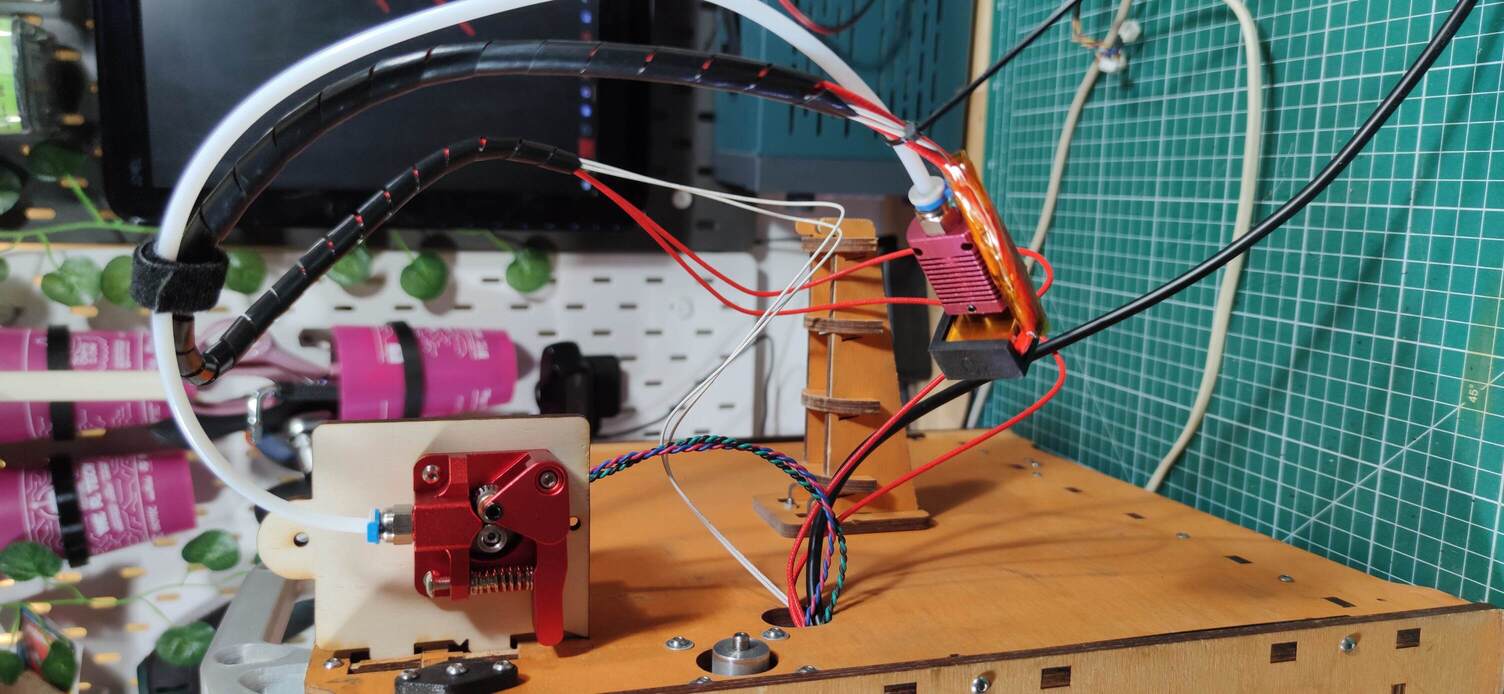 Temporary assembly for the first tests.
Printed print head mount
To replace the test assembly, I am designing a print head mount in FreeCAD. The files are in the repository’s hotend/ folder: STEP, STL, 3MF project and FreeCAD sources. A V2 is in progress (hotend-UMO-1_75-V2.FCStd).
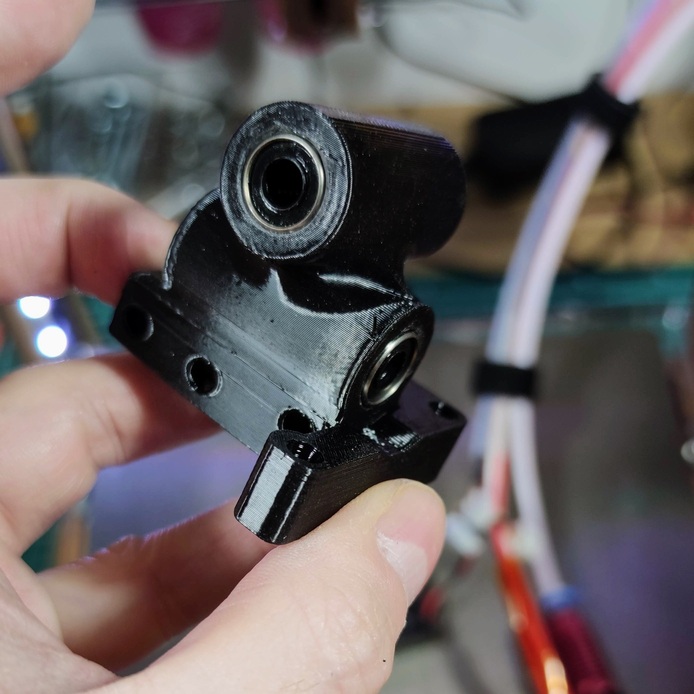
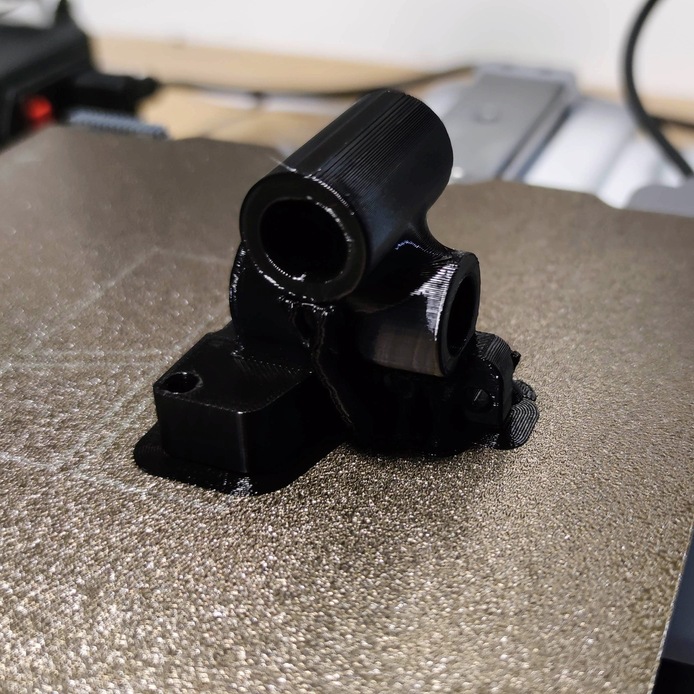 The printed print head mount.
For reference, the folder also contains the E3D hotend mount for Ultimaker by am001 (Creative Commons Attribution license).
Compiling Marlin
Use Arduino IDE 1.x to compile and flash Marlin. The firmware is in the repository’s firmware/ folder.
In Configuration.h, set the temperature sensor:
#define TEMP_SENSOR_0 1
// 1 is a 100k thermistor - ideal for EPCOS 100k (with a 4.7k pullup resistor)
Temperature test
Before going further, check that the sensor works:
- send this command from a G-code terminal:
M109 S50 - check that the temperature rises as the hotend heats up.
Hotend PID calibration
Run PID auto-tuning to optimize heating:
- run the command:
M303 E0 S200 C8 - record the results (Kp, Ki, Kd). For example:
Kp: 47.02 Ki: 5.48 Kd: 100.91 - update these values in
Configuration.h:#define DEFAULT_Kp 47.02 #define DEFAULT_Ki 5.48 #define DEFAULT_Kd 100.91
Extruder steps per mm (e-steps)
Calibrate the extruder so it pushes the right amount of filament:
- set the e-steps value. Mine was:
M92 E140
M500
Adjust this value to your setup if needed.
- test the extruder movement:
- extrude 10 mm of filament:
G1 E10 F100 - retract 10 mm:
G1 E-10 F800
- extrude 10 mm of filament:
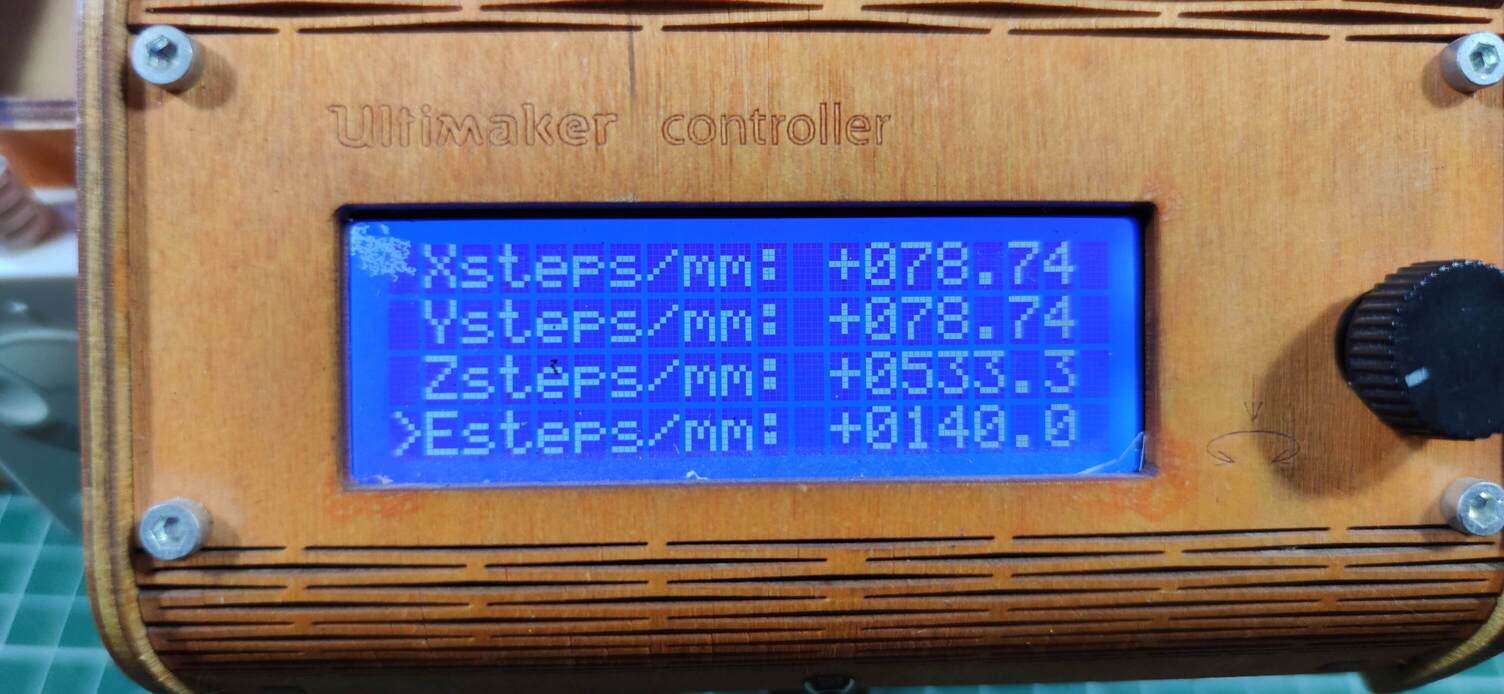
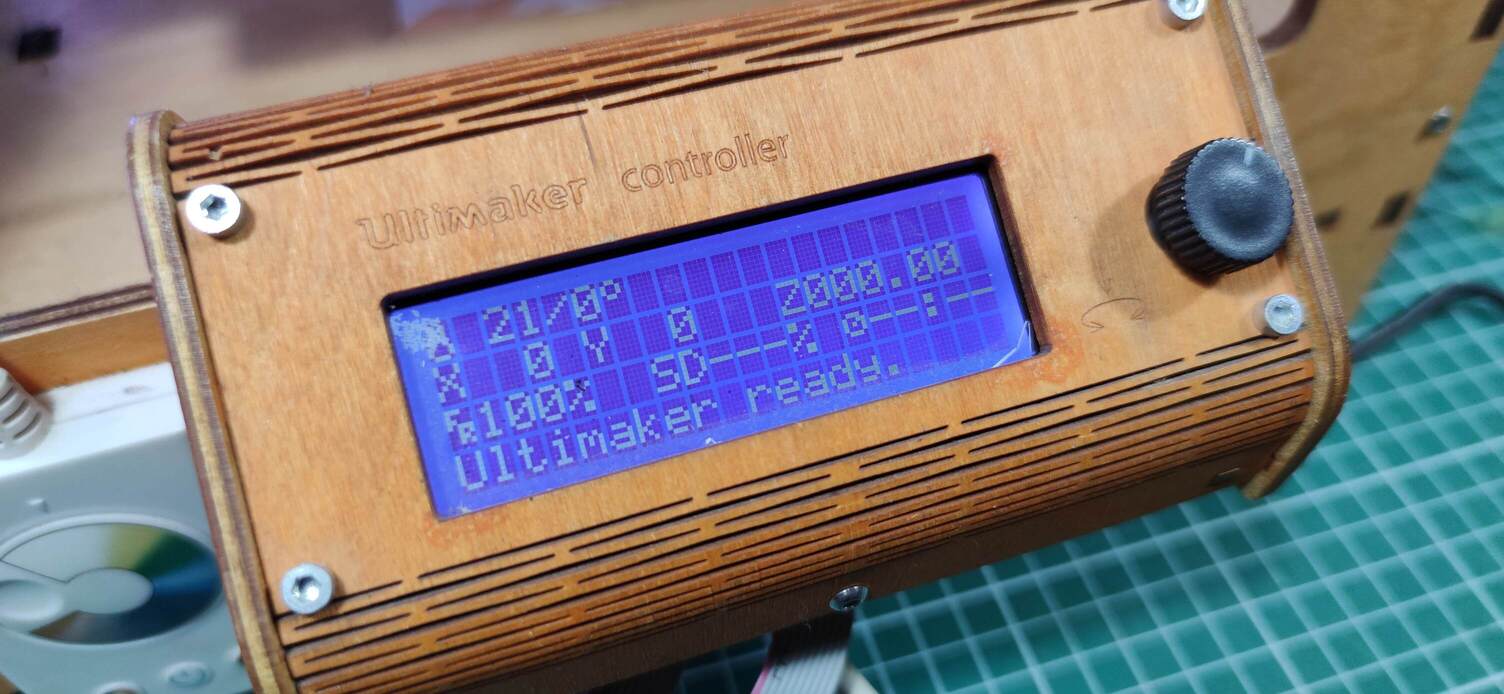 The Ultimaker controller: e-steps at 140, machine ready.
Make sure the hotend is hot before extruding or retracting filament.
OrcaSlicer profile
The repository provides an OrcaSlicer printer profile, 0.4 mm nozzle and 1.75 mm filament: Ultimaker Original 0.4 nozzle - 1.75mm.orca_printer.
What’s next
With these steps, the Ultimaker Original prints with 1.75 mm filament. Still to do: the V2 print head mount, the “Ultimaker-style” extruder replacement, tidying the cables and photos of the fan.